

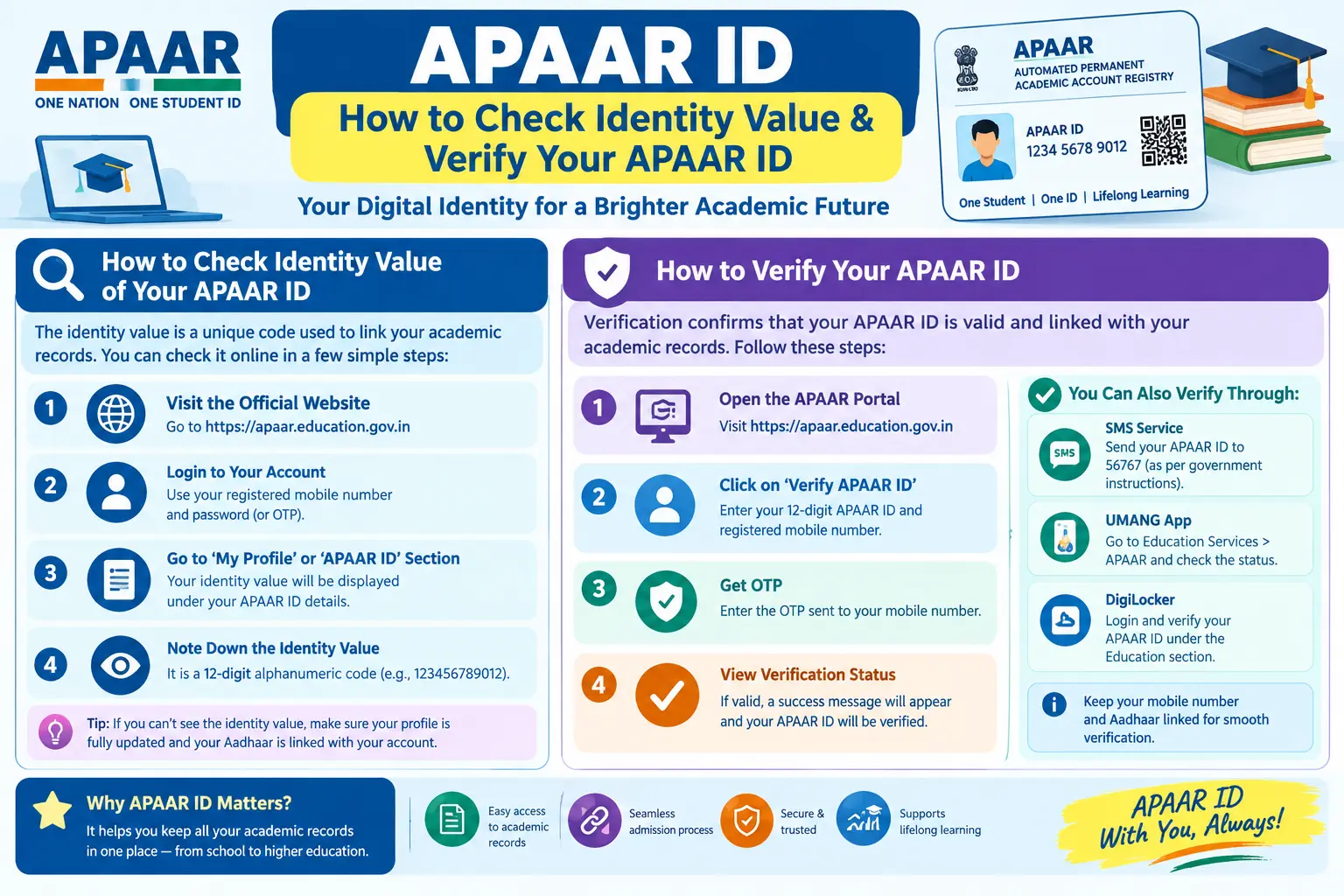
You’ve logged into DigiLocker, typed “APAAR ID” into the search bar, and now the portal is asking for something called an “identity value.” You have no idea what that is. Or maybe you entered your roll number and got a “no records found” error. Either way, you’re stuck.
This is a common experience for students trying to fetch their APAAR ID — the 12-digit academic identity number under the ‘One Nation, One Student ID’ initiative. The confusion usually comes down to one term: identity value. This article explains what is identity value in APAAR ID, how to find yours, and how to check and verify your APAAR ID without the usual headaches.
What Is APAAR ID and Why Does It Matter?
APAAR stands for Automated Permanent Academic Account Registry. It’s a 12-digit number linked to your Aadhaar and your DigiLocker account, designed to store all your academic records — mark sheets, certificates, credits — in one digital place.
The idea is simple: instead of carrying a folder of documents when you change schools or apply for a scholarship, you share your APAAR ID and the institution pulls what it needs. Under the National Education Policy 2020, the Academic Bank of Credits (ABC) uses this ID to track credits you earn across courses. Some universities now ask for it during admissions or credit transfers, though it remains voluntary at the national level. Your institution may still require it for internal processes, so it’s worth setting up early.
Discover More About:👇
Aadhaar Status Check – How to Check Enrolment & Update Status Online
Aadhaar Verification Online: How to Verify & Check Aadhaar Card Validity
What Is Identity Value in APAAR ID?
The identity value is not your APAAR ID. It’s the identifier your school or college has assigned to you — the one that already exists in their records. Depending on your institution, that could be:
- Your roll number
- Your enrolment number
- Your registration number
- Your admission number
When you search for your APAAR ID on DigiLocker, the system asks you to select an “identity type” (say, enrolment number) and then enter the corresponding “identity value” (the actual number). This is how the portal matches you to your institution’s records. Get it wrong, and the system has no way to confirm you’re a student there — which is why the search fails.
Think of it this way: your APAAR ID is the permanent number you’ll keep for life. The identity value is the temporary reference number your institution uses for you right now. They serve completely different purposes, which is why mixing them up causes so much confusion.
How to Check Your APAAR ID on DigiLocker
The most reliable way to check your APAAR ID is through DigiLocker. Here’s how it typically works:
Step 1: Open the DigiLocker app or website (https://www.digilocker.gov.in/) and sign in. Use the mobile number linked to your Aadhaar, or your Aadhaar number with the security PIN you set up.
Step 2: Go to the “Search Documents” tab. Don’t look in “Issued Documents” first — if your APAAR ID hasn’t been fetched yet, it won’t be there.
Step 3: Type “APAAR ID” or “Academic Bank of Credits” in the search bar and select the result.
Step 4: You’ll be asked to enter details like your institution name, admission year, identity type, and identity value. Enter them carefully.
Step 5: Submit. If the details match your institution’s records, your APAAR ID should appear. You can then save it to your issued documents.
Common pitfalls:
- The identity value doesn’t match. Your roll number in the portal might be different from what you remember. Check your ID card or ask your institution’s office for the exact number they have on record.
- OTP doesn’t arrive. This usually means your mobile number isn’t linked to Aadhaar. You’ll need to update it at an Aadhaar Seva Kendra before you can proceed.
- The portal times out. DigiLocker can be slow during peak admission season. Try again after a few hours, preferably outside 10 AM–4 PM.
If you can’t find your APAAR ID through DigiLocker, your institution’s student portal may have it. Some colleges display the APAAR/ABC ID directly on the dashboard after you log in with your enrolment details.
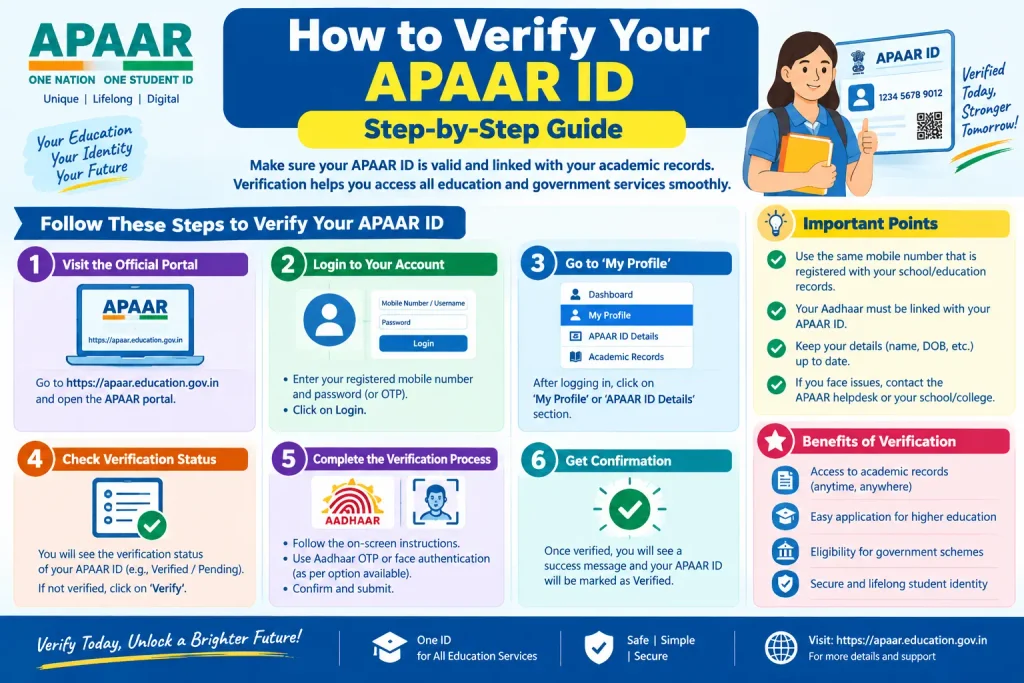
How to Verify Your APAAR ID
Verification is about making sure the details on your APAAR ID match your Aadhaar and your institution’s records. When your school or college generates your ID, they’re supposed to cross-check your name, date of birth, and gender against UDISE+ (the government’s school education database) and your Aadhaar. For students under 18, a parent or guardian must give consent before the ID is generated.
To verify your own APAAR ID, open it in DigiLocker and check:
- Your name is spelled exactly as it appears on your Aadhaar
- Your date of birth matches
- Your institution’s name and your enrolment details are correct
If something is wrong, don’t try to fix it yourself. Contact your institution’s office. They can correct the details in UDISE+ or advise you on updating your Aadhaar, depending on where the mismatch is. Small spelling differences — a missing middle name, a space where there shouldn’t be one — are enough to cause verification failures.
Documents You’ll Typically Need
To create or verify your APAAR ID, you’ll generally need:
- Aadhaar card — your APAAR ID is linked to it for identity verification
- Mobile number linked to Aadhaar — for receiving OTPs
- Permanent Education Number (PEN) — recorded in UDISE+; your school can provide it
- Roll number or enrolment number — this becomes your identity value during registration
- Parental consent — required for students under 18
A birth certificate may also be needed if there’s a date of birth mismatch between your Aadhaar and school records. Before you start, check that your name and date of birth are consistent across all these documents. Fixing a mismatch after the APAAR ID is generated takes more time than fixing it beforehand.
Common Mistakes to Avoid
Mismatched details. If your name is spelled differently on your Aadhaar and your school records, the system can’t verify you. This is the single most common reason APAAR ID generation fails.
Wrong identity value. Entering your APAAR ID where the identity value is expected, or selecting the wrong identity type, will return a “no records found” error. Double-check the exact number your institution has on file.
Unlinked mobile number. Without a mobile number linked to Aadhaar, you can’t receive the OTP needed for authentication. Update it at an Aadhaar Seva Kendra before starting the process.
Skipping parental consent for minors. The APAAR portal requires it for students under 18. Without consent, the ID won’t be generated, no matter how correct the other details are.
Frequently Asked Questions
What is identity value in APAAR ID?
It’s the identifier your institution uses for you — typically your roll number, enrolment number, registration number, or admission number. You enter it when searching for your APAAR ID on DigiLocker so the system can match you to your institution’s records.
How do I check my APAAR ID?
Sign in to DigiLocker, go to “Search Documents,” and enter your institution details along with your identity type and identity value. If your APAAR ID has already been generated, it will appear and can be saved to your issued documents.
Is APAAR ID mandatory?
No, it’s currently voluntary. But the Ministry of Education encourages it, and some universities require it for admissions or credit transfer under the NEP 2020.
What if my APAAR ID isn’t generated?
Check for mismatches in your name, date of birth, or identity value. Make sure your mobile number is linked to Aadhaar. If everything looks correct, contact your institution’s office — they can check whether your details are correctly recorded in UDISE+.
Can I download my APAAR ID?
Yes. Once it appears in your DigiLocker issued documents, you can download it as a PDF.
Is APAAR ID the same as ABC ID?
Yes. ABC ID (Academic Bank of Credits ID) was the earlier name. It was renamed APAAR ID under the ‘One Nation, One Student ID’ initiative. They refer to the same 12-digit number.
A Final Note
If your APAAR ID search fails even after you’ve checked everything, don’t keep retrying endlessly. Wait 24–48 hours — institution records sometimes take time to sync with the portal, especially during admission season. If it still doesn’t work, your institution’s office is your best starting point. They can see what’s on record and tell you exactly what needs to change. For Aadhaar-related issues, the UIDAI website and toll-free helpline remain the final word.
