

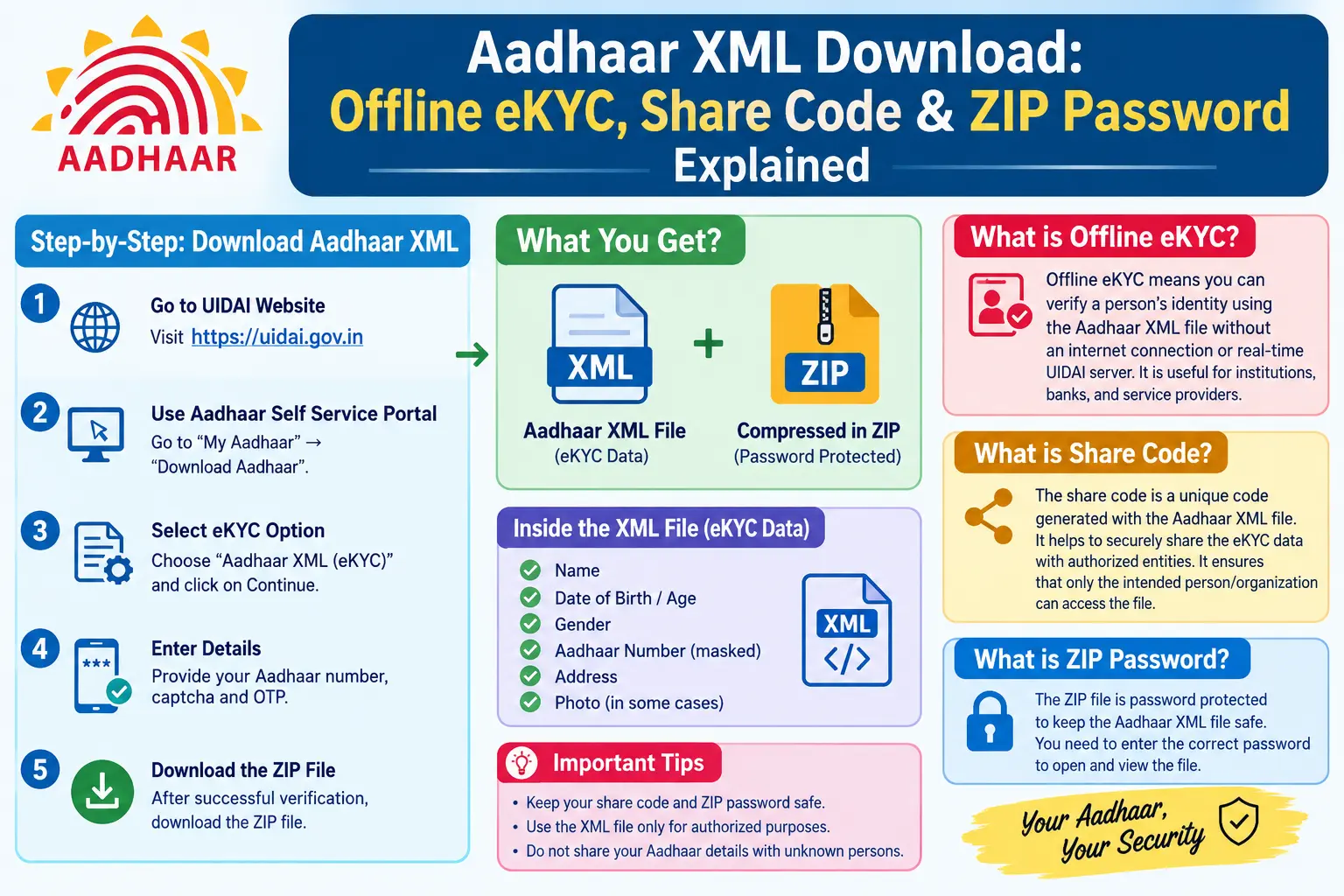
Your bank has sent a reminder. Your telecom operator wants it before the month ends. And the document they’re asking for isn’t a photocopy or a PDF — it’s an Aadhaar XML file. If you’ve been staring at that request wondering where to get it and what password will actually open it, you’re in the right place. This guide covers how to download Aadhaar XML, how the ZIP password is built from your own details, how the offline eKYC share code works, and the small mistakes that keep people locked out of their own file for hours.
What Is an Aadhaar XML File?
An Aadhaar XML file is a digitally signed electronic copy of your Aadhaar data, issued by UIDAI (the Unique Identification Authority of India). Unlike a PDF or a photograph, the XML carries a digital signature. An authorised agency can confirm your details are genuine without querying UIDAI’s servers in real time.
That’s what makes offline eKYC possible — a paperless verification method where your details are checked locally, on the spot. Because the file is signed, edits are detectable. Banks and telecom operators tend to prefer it over a scanned card for exactly that reason.
The XML sits inside a ZIP folder, and that ZIP is encrypted with a password derived from your own Aadhaar record. Only someone who knows your details can open it.
Discover More About:👇
e Card Download: How to Download e-Aadhaar, XML, PVC & Get a Physical Aadhaar Card
Aadhaar Card PDF Password: Format & How to Open e-Aadhaar
Why Aadhaar XML Instead of the Standard PDF?
The e-Aadhaar PDF works fine for printing and personal records. It was never built for secure digital verification.
- Offline verification: The agency validates your details without a live connection to UIDAI.
- Reduced exposure: You share only the fields required, not your entire visible card.
- Tamper resistance: The digital signature exposes unauthorised edits.
- Accepted for eKYC: Many banks, telecom operators, and welfare portals accept Aadhaar XML for Know Your Customer checks.
If a service specifically asks for XML, a screenshot or PDF usually won’t clear the verification.
How to Download the Aadhaar XML ZIP File: Step by Step
You can generate the file through the official UIDAI portal (uidai.gov.in) or the mAadhaar app. Both routes follow the same logic. Check the current interface on the official site, since UIDAI updates it periodically.
Method 1: Through the UIDAI Portal
- Open the official UIDAI website and find the “Download Aadhaar” section.
- Select the XML option — usually labelled for eKYC or offline verification.
- Enter your Aadhaar number or VID (Virtual ID — a temporary, revocable 16-digit number you can use in place of your Aadhaar number).
- An OTP will be sent to your registered mobile number. Enter it to continue.
- Set or confirm a share code if prompted.
- The portal generates a ZIP file containing your XML. Download it and store it somewhere secure.
Pitfall to watch: The portal session can time out if you take too long between steps, and you’ll have to restart the OTP process. Have your Aadhaar number and phone within reach before you begin.
Method 2: Through the mAadhaar App
- Open the mAadhaar app and log in with your registered mobile number.
- Choose the option to download Aadhaar or generate XML.
- Select XML/eKYC and enter your share code.
- Authenticate with the OTP sent to your registered number.
- Save the ZIP file to your device.
Pitfall to watch: OTPs won’t arrive if your registered mobile number is inactive or has changed. If that’s your situation, you’ll need to update the number first at an Aadhaar Enrolment/Update Centre or an Aadhaar Seva Kendra.
The Aadhaar Offline eKYC Share Code
When you generate the XML, you’ll often be asked to create a share code — a short, personal code you set yourself. The verifying agency needs it to open and use your file.
The logic is straightforward. Even if someone intercepts the ZIP, they can’t do anything with it without the share code, which you pass on separately. You decide who receives it and when.
Treat it like a one-time key. Share it only with the specific bank, telecom operator, or agency that needs to verify you, and avoid sending it through insecure channels.
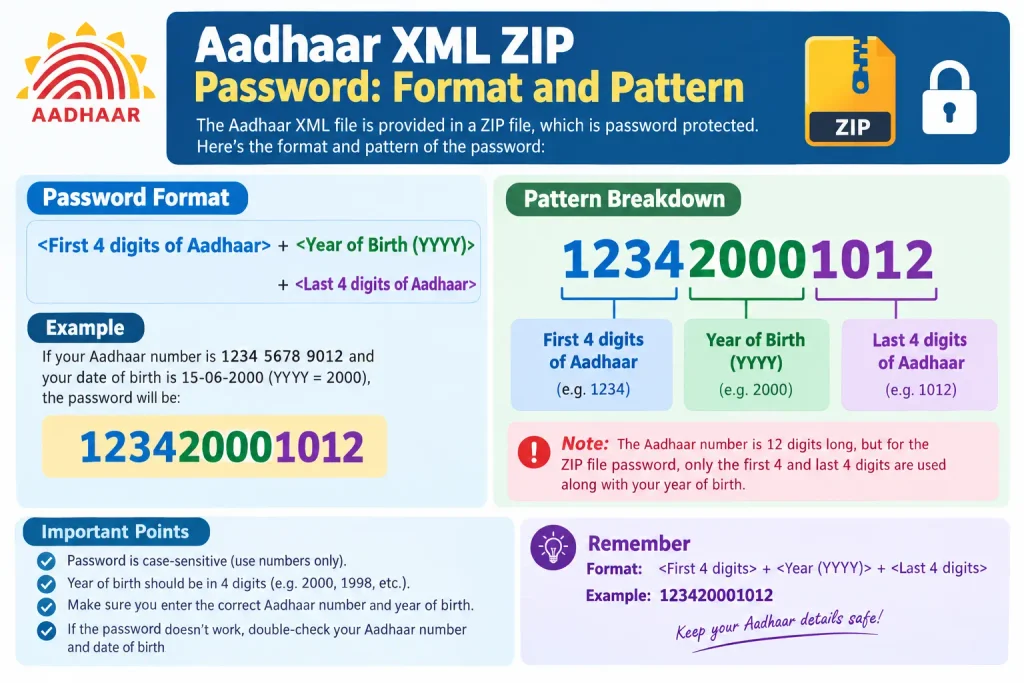
Aadhaar XML ZIP Password: Format and Pattern
This is the step where most people get stuck. The ZIP is encrypted, and the password isn’t one you choose — it follows a fixed pattern built from your Aadhaar details.
The Aadhaar download password is generally made up of three parts, in this order:
- The first four letters of your name as recorded in Aadhaar, in capital letters
- Your year of birth (four digits)
- The “@” symbol
So the Aadhaar card password format looks like this:
NAME (first 4 letters, capitals) + YEAR OF BIRTH + @If your Aadhaar name is “Ramesh” and your year of birth is 1990, the password would resemble RAME1990@.
A few things to keep in mind about this e Aadhaar download password:
- Use your name exactly as it appears in Aadhaar — not a nickname or a shorter version.
- The four letters come from the start of your name.
- If your name has fewer than four letters, use whatever is there.
- Capitalisation and the exact year matter. Most failed attempts trace back to one of these two.
- For an Aadhaar XML file download, the same password logic generally applies to the ZIP holding the XML.
If the password still won’t work after rechecking, revisit whether you set a different share code during generation. The two are separate, and mixing them up is common.
Discover More About:👇
Aadhaar KYC Process: How to Complete Aadhaar-Based KYC
mAadhaar App Download & Guide: Features, Face RD and AadhaarPay Explained
Common Mistakes to Avoid
- Wrong name format: Using a nickname or a differently spelled name instead of the exact Aadhaar name.
- Wrong year of birth: Using your actual birth year when Aadhaar records a different one, or vice versa.
- Forgetting the “@”: Leaving off the symbol that ends the password.
- Confusing the share code with the ZIP password: The ZIP password follows the name-year-@ pattern; the share code is one you create.
- Inactive registered mobile: OTPs won’t arrive, so update the number first.
- Careless sharing: Send the ZIP and share code separately, and only to trusted, authorised parties.
- Assuming a PDF will work: If an agency asks for XML, a PDF or screenshot usually won’t be accepted.
If you’re unsure what’s actually recorded in your Aadhaar, view your profile through the official portal or app before generating the file. It takes a minute and saves a lot of guesswork.
Frequently Asked Questions
1. Is the Aadhaar XML download free?
Downloading your own Aadhaar XML is generally free on the official UIDAI portal and mAadhaar app. Rules and fees can change, so check the official UIDAI portal for current details.
2. What is the password pattern for my Aadhaar ZIP file?
It typically follows: first four letters of your name in capitals, then your year of birth, then the “@” symbol — for example, RAME1990@. Use the exact name and birth year recorded in Aadhaar.
3. How do I download the Aadhaar XML ZIP file?
Log in to the UIDAI portal or mAadhaar app, choose the XML/eKYC option, authenticate with the OTP sent to your registered mobile, set a share code if prompted, and save the ZIP file.
4. What is the Aadhaar offline eKYC share code used for?
It’s a short code you create that the verifying agency needs, along with the ZIP password, to open and use your XML. It keeps control of your data in your hands.
5. Can I use Aadhaar XML for bank KYC?
Many banks and telecom operators accept Aadhaar XML for offline eKYC. Confirm with the specific institution, since acceptance and requirements vary.
6. What if my ZIP password is not working?
Recheck your name spelling and year of birth exactly as recorded in Aadhaar, and confirm you’ve included the “@” symbol. If it still fails, verify your details on the official UIDAI portal or call the UIDAI helpline.
Before you generate the file, spend two minutes confirming the name and year of birth on your Aadhaar profile — that alone prevents most failed attempts. And if an agency rejects your XML for a reason you can’t pin down, ask them which field didn’t match; it’s usually a small spelling or date discrepancy between your Aadhaar record and their form, which you can correct at the source rather than regenerating the file repeatedly.
