

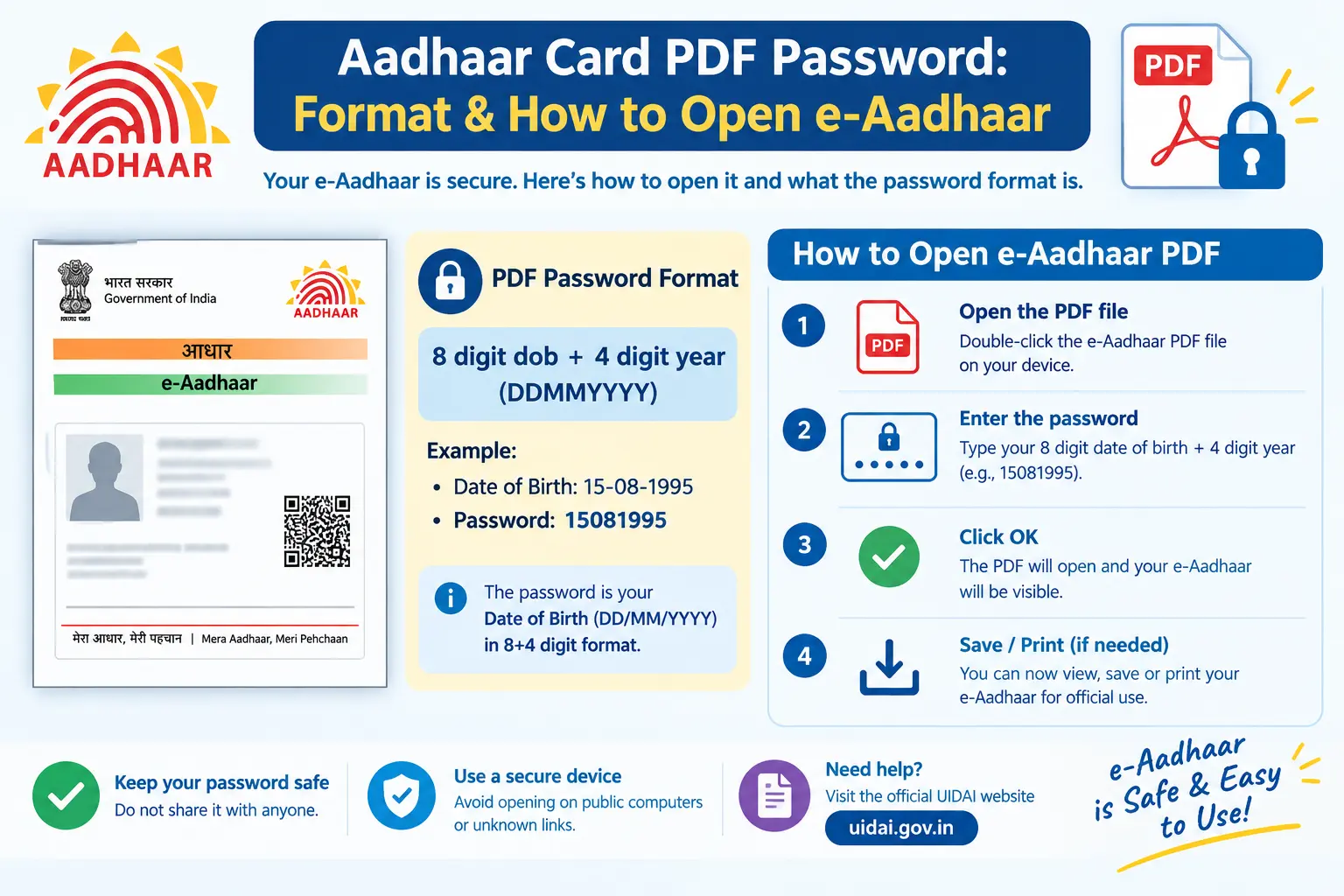
You’ve cleared the OTP, the download completed, and then the file refuses to open. A password box sits there, and nothing you type works. It’s a familiar dead end — and a stressful one when a bank, telecom operator, or employer is waiting for your e-Aadhaar before a deadline. The good news is that the e aadhaar password isn’t a secret you’ve forgotten; it’s a fixed combination built from details already on your Aadhaar. This guide breaks down that format, walks through opening the file on a computer and a phone, and covers what to do when the standard password is rejected.
Discover More About: 👇
Aadhaar Voter Link Status: How to Check Voter ID Aadhaar Link Status Online
e Card Download: How to Download e-Aadhaar, XML, PVC & Get a Physical Aadhaar Card
Aadhaar Biometric Unlock Online: How to Unlock Aadhaar Biometrics
Why UIDAI Locks the e-Aadhaar PDF
An e-Aadhaar is a digitally signed PDF of your Aadhaar letter. It carries your name, address, date of birth, photograph, and 12-digit Aadhaar number — enough for someone to misuse if the file fell into the wrong hands. UIDAI (the Unique Identification Authority of India, which issues Aadhaar) therefore encrypts the PDF so it can’t be opened or read without the correct password.
That’s also why the aadhar password isn’t one you invent. You don’t register it, and you can’t reset it. It’s derived from your own Aadhaar record, which keeps things simple — until a small mismatch between what you’re typing and what UIDAI has on file sends you back to the password box.
Read More About👇
The e-Aadhaar Password Format
The e aadhaar password format combines four elements of your Aadhaar details into a single string, written with no spaces:
- The first four letters of your name, in capital letters, exactly as printed on your Aadhaar
- Your year of birth in four digits (YYYY)
- Your six-digit postal PIN code, taken from the address on your Aadhaar
The pattern looks like this:
NAME (first 4 letters, CAPS) + BIRTH YEAR (YYYY) + PIN CODE
Say your name is Ramesh, you were born in 1990, and your Aadhaar address carries the PIN code 110001. The password would generally be RAME1990110001.
A few details trip people up:
- The name portion comes from your Aadhaar name, not a nickname or the spelling you use elsewhere.
- Names shorter than four letters are used in full — “Om” stays “OM”.
- Everything runs together: no spaces, hyphens, or slashes.
- The year is four digits, not two.
- The PIN code is the one tied to your Aadhaar address, which may not be where you live now.
Names with initials, compound surnames, or a recent correction can shift the result slightly. If the standard pattern fails, don’t assume the file is damaged — check the alternatives below first.
Opening the PDF on a Computer or Phone
Once you have the pattern, opening the file takes seconds. The steps are the same whether you downloaded from the UIDAI portal (uidai.gov.in), the mAadhaar app, or another official channel.
On a Computer (Windows, Mac, or Linux)
- Find the downloaded e-Aadhaar PDF in your Downloads folder.
- Double-click it to launch your default PDF reader.
- Enter the password in the format above when prompted.
- Pay attention to capital letters — the password is case-sensitive.
- Click OK to open the document.
On an Android or iOS Phone
- Open your Files app and locate the PDF.
- Tap it; most phones open PDFs in a built-in viewer.
- Type the password at the prompt.
- If your phone’s default viewer can’t handle password-protected files, install a well-reviewed PDF reader and try again.
Through the mAadhaar App
Aadhaar downloaded inside the mAadhaar app usually stays in the app’s secure storage, where you can view it without typing anything. The password only becomes relevant when you save a PDF copy and open it in an outside viewer — at which point the same format applies.
When the Password Is Rejected
A rejected password almost always traces back to a mismatch, not a corrupt file. Run through these before trying anything else:
- Name spelling: Compare your typing against the name printed on your Aadhaar letter, letter for letter.
- Initials or prefixes: A name like “R. Sharma” or one carrying a title can make the first four characters ambiguous. Use exactly what’s printed.
- Birth year: Use the year alone — 1990, not 01/01/1990.
- PIN code: The password uses the PIN code on your Aadhaar, which may differ from your current address.
- Stray characters: A trailing space or a letter typed where a digit belongs is enough to fail.
- Incomplete download: If the file size looks unusually small, download it again from the official source.
If the format still fails, check the UIDAI portal for current guidance or call the UIDAI toll-free helpline with your case details. Steer clear of sites promising to “unlock” Aadhaar PDFs — they’re a common route to identity theft.
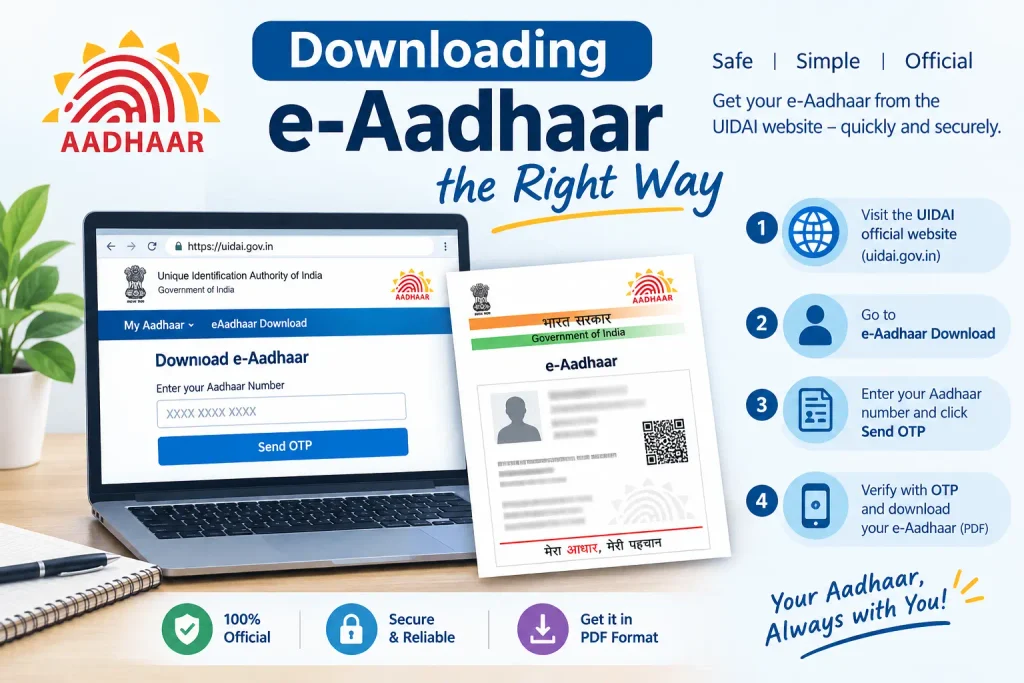
Downloading e-Aadhaar the Right Way
Most password trouble starts at the download stage. The aadhar card download password is generated from your Aadhaar record, so accuracy of your details and the source you use matter more than anything else.
Official routes for downloading e-Aadhaar include:
- The UIDAI portal, using your Aadhaar number, Enrolment ID (EID — the number on your enrolment slip), or Virtual ID (VID — a 16-digit stand-in for your Aadhaar number that you can generate for privacy).
- The mAadhaar app.
- An Aadhaar Seva Kendra, where staff can help with printing or corrections.
Discover More About: 👇
What is Aadhaar Number, VID (Virtual ID) & UIDAI Full Form – Complete Beginner’s Guide
mAadhaar App Download & Guide: Features, Face RD and AadhaarPay Explained
Verification typically runs through an OTP sent to your registered mobile number. If that number is outdated, the download stalls — and so do most online updates. Changing it means visiting an Aadhaar Seva Kendra in person, so it’s worth confirming your registered number is current before you’re under deadline pressure.
A practical pitfall: the portal session can time out while you’re waiting for the OTP. Keep your Aadhaar number, EID, or VID typed and ready before you request the code, and avoid refreshing the page mid-flow.
What to Keep Ready
Before you start a download, update, or correction, have these within reach:
- Your Aadhaar number, EID, or VID
- Your registered mobile number, switched on and with signal, for the OTP
- A PDF reader installed on the device you’ll open the file on
- For corrections at an Aadhaar Seva Kendra — name, date of birth, address changes — original supporting documents that prove the correct detail. The accepted document list is revised periodically, so confirm the current one on the UIDAI portal before travelling.
Mistakes That Cost Time
- Typing the name portion in lowercase. It’s capitalised; check your caps lock.
- Using your present PIN code instead of the one on your Aadhaar.
- Assuming the password is your Aadhaar number. It isn’t — the two are unrelated.
- Downloading from unofficial sites. Only the UIDAI portal and mAadhaar app are authorised.
- Treating the PDF as harmless once it’s locked. Share it only when genuinely needed, such as for e-KYC (electronic Know Your Customer, a paperless identity check).
FAQs
What is the e aadhaar password format?
First four letters of your name in capitals, then your four-digit birth year, then your six-digit PIN code — all joined with no spaces.
Is the aadhar password the same as my Aadhaar number?
No. The password is built from your name, birth year, and PIN code. Your Aadhaar number is a separate 12-digit identifier.
What if my name has fewer than four letters?
The whole name is used in place of the four-letter portion, followed by your birth year and PIN code.
Can I change my download aadhar card password?
Not directly — it’s generated from your Aadhaar details. After a correction, later downloads will carry a password reflecting the updated details.
Why does my e-Aadhaar keep saying “incorrect password”?
Usually a name spelling mismatch, the wrong birth year, or a PIN code that isn’t linked to your Aadhaar. Verify each part against your Aadhaar letter.
Where can I get help if it still won’t open?
The official UIDAI portal (uidai.gov.in) and the UIDAI toll-free helpline are the reliable routes. Avoid unofficial unlock tools.
If a correction is what’s blocking you, note that updated details don’t always reflect in downloads immediately — allow time for the change to propagate before re-downloading, and if the new password still doesn’t match, that’s your signal to verify the correction actually went through rather than assuming the PDF is at fault.

1 Comment
Pingback: Download Aadhaar XML: Offline eKYC & ZIP Password