

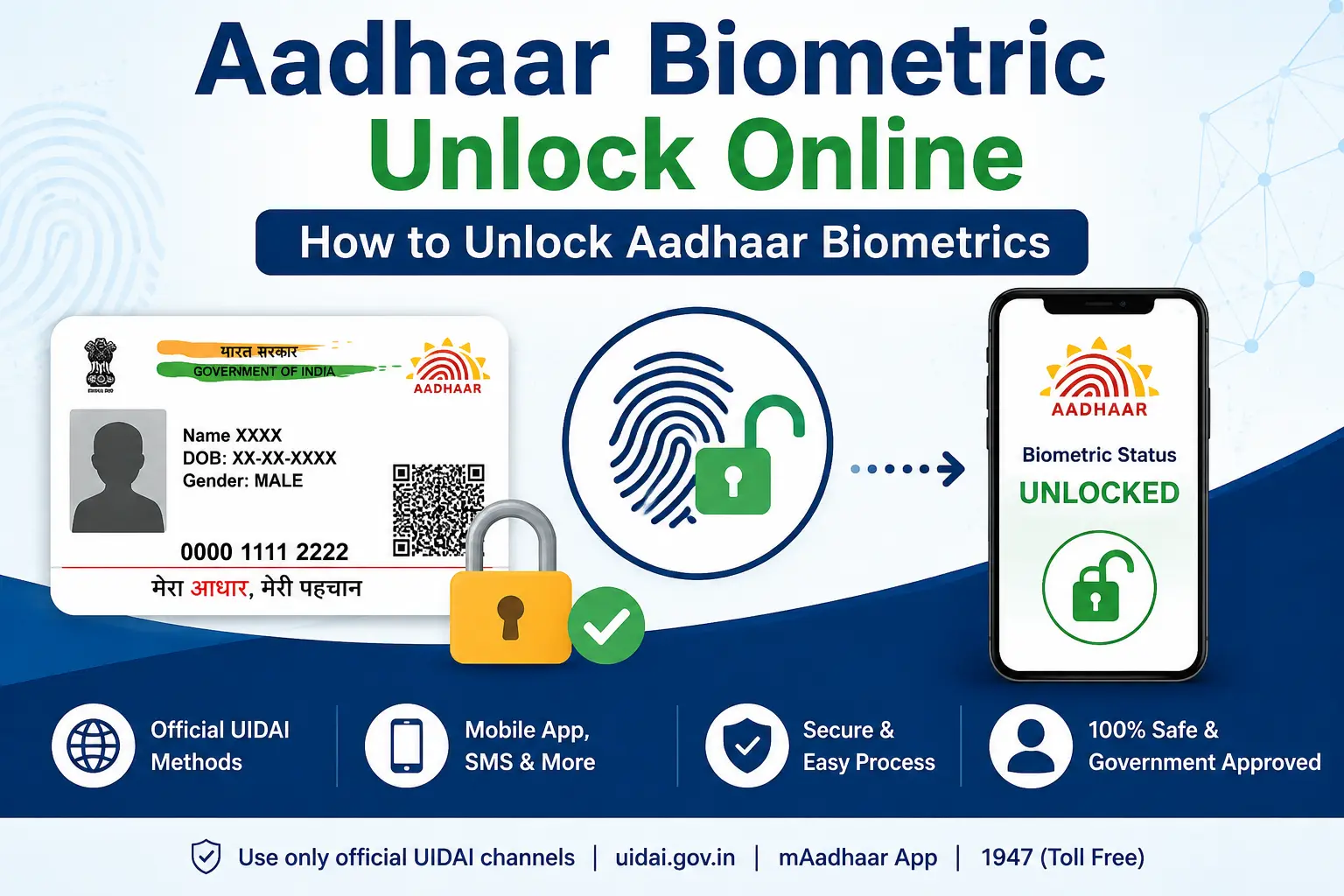
Your fingerprint authentication can fail even when your Aadhaar itself is perfectly valid. One possible reason is that you have previously locked your Aadhaar biometrics. If you see error 330, for example, the issue is specifically related to biometric locking—not necessarily an invalid or blocked Aadhaar.
This is why searches such as “aadhaar biometric unlock online”, “biometric unlock Aadhaar”, “verify Aadhaar card”, and “Aadhaar biometrics locked hai ya nahi kaise pata karen” often get mixed together. They sound similar, but they refer to different UIDAI services.
This guide explains how biometric lock and unlock works, what error 330 means, how Aadhaar verification differs from authentication, what “please check Aadhaar consent” can mean, and where PM-KISAN fits into the picture. It also explains what to do when your registered mobile number or OTP becomes a problem.
Important: CheckAadharStatus.com is an independent informational website. It is not affiliated with or operated by UIDAI or the Government of India. Use the official UIDAI website, myAadhaar portal or official Aadhaar App for actual Aadhaar services.
Discover More About: 👇
PAN Aadhaar Link Status Kaise Check Karein
How to Change Your Aadhaar Address Online: A Complete Guide (2026)
Address Proof Documents List for Aadhaar: What Documents Are Accepted?
Quick Facts
| Detail | Information |
|---|---|
| Service | Aadhaar Biometric Lock/Unlock |
| Governing body | UIDAI |
| Biometrics covered | Fingerprint, iris and face |
| Registered mobile | Essential for biometric lock/unlock |
| Error 330 | Biometrics locked by Aadhaar holder |
| Online channel | UIDAI / myAadhaar |
| Other channels | Aadhaar App, SMS and Aadhaar centre |
| PM-KISAN payment status | Separate service requiring PM-KISAN Registration Number |
What Is Aadhaar Biometric Lock and Unlock?
Aadhaar biometric locking is a security facility that allows an Aadhaar holder to prevent biometric authentication using their fingerprint, iris or face.
When biometrics are locked, biometric authentication cannot be performed. If an authentication request is made while they are locked, UIDAI uses error code 330, which means “Biometrics locked by Aadhaar holder.”
Unlocking allows biometric authentication to be used again. UIDAI also provides an option to disable the biometric-locking system.
This is different from locking the Aadhaar number itself. Biometric Lock, UID Lock, Aadhaar Verification and Authentication History are separate services.
What You Need Before Unlocking Aadhaar Biometrics
Before attempting an online unlock, check these basics:
- ✅ Your Aadhaar has a registered mobile number
- ✅ You can receive the required OTP on that number
- ✅ You are using an official UIDAI channel
- ✅ You know whether you need a temporary unlock or want to disable biometric locking
UIDAI states that a registered mobile number is essential for biometric lock/unlock. If your mobile number is not registered, you may need to visit an Aadhaar enrolment/update centre.
How to Unlock Aadhaar Biometrics Online
If you need biometric unlock Aadhaar access for a legitimate authentication service, use the official UIDAI route.
1. Open the official UIDAI service
Start from UIDAI’s official website or myAadhaar portal.
Avoid websites that ask you to pay an unofficial agent to “activate” or “unlock” your Aadhaar.
2. Select Biometric Lock/Unlock
Find the official Lock/Unlock Biometrics service and follow the instructions displayed by UIDAI.
3. Complete verification
Follow the authentication process shown on the official portal. OTP-based verification depends on your registered mobile number.
4. Select the required option
UIDAI provides the facility to temporarily unlock biometrics. It also provides an option to disable the biometric locking system. Choose the option that matches your requirement.
5. Complete the request
Finish the verification and confirmation shown by the official service.
If you need fingerprint, iris or face authentication afterwards, retry the relevant authentication process.
Other Ways to Unlock Aadhaar Biometrics
Online access is not the only official option.
| Method | Best suited for |
|---|---|
| UIDAI/myAadhaar | Users who want to manage the service online |
| Aadhaar App | Users managing Aadhaar services through the official app |
| SMS | Users who want to use UIDAI’s SMS facility |
| Aadhaar centre | Users who cannot use the online/mobile route |
Aadhaar App
The current official Aadhaar App includes biometric lock/unlock functionality along with other Aadhaar services. In 2026, UIDAI reported that the Aadhaar App has crossed four crore downloads, and its Biometric Lock and Unlock feature has been used more than 1.91 crore times.
SMS (1947)
UIDAI’s SMS service through 1947 supports Aadhaar-related services, including biometric lock/unlock.
For temporary biometric unlocking using the Aadhaar number:
- Send
GETOTP <last-4-digits-of-Aadhaar>to 1947- Example:
GETOTP 9123
- Example:
- Send
UNLOCKBIO <last-4-digits-of-Aadhaar> <OTP>to 1947- Example:
UNLOCKBIO 9123 012345
- Example:
VID-based option (if using Virtual ID instead of Aadhaar number):
text
UNLOCKBIO <Virtual-ID-last-6-digits> <OTP-6-digits>
Because SMS formats can change, check UIDAI’s current instructions before sending a service command. In case of multiple dependent Aadhaar numbers linked to the same mobile number where the last 4 digits are the same, use the last 8 digits of the Aadhaar number instead.
Aadhaar Centre
If your mobile number is not registered or you cannot use the required mobile-based authentication, UIDAI directs residents toward an Aadhaar enrolment/update centre.
What Does Aadhaar Error 330 Mean?
If an Aadhaar authentication attempt returns error 330, UIDAI defines it as:
Biometrics locked by Aadhaar holder.
It does not mean that your Aadhaar number has automatically become invalid.
If you receive this error:
- Check your biometric-lock status
- Use an official UIDAI unlock facility
- Complete the required verification
- Retry the biometric authentication
If the problem continues after unlocking, check the new error message instead of assuming the biometrics are still locked.
Discover More About: 👇
Aadhaar KYC Process: How to Complete Aadhaar-Based KYC
PVC Aadhaar Card: How to Order, Apply & Track Your Aadhaar Smart Card Online
How to Know Whether Aadhaar Biometrics Are Locked
Many users simply want to know: “Biometrics locked hain ya nahi, kaise pata karen?”
The most important official clue is the authentication response. Error 330 specifically indicates that biometrics are locked.
You can also use the official Aadhaar App or UIDAI’s biometric lock/unlock facility to manage the setting.
A failed fingerprint by itself, however, does not prove that biometrics are locked. Biometric authentication can fail for other reasons too.
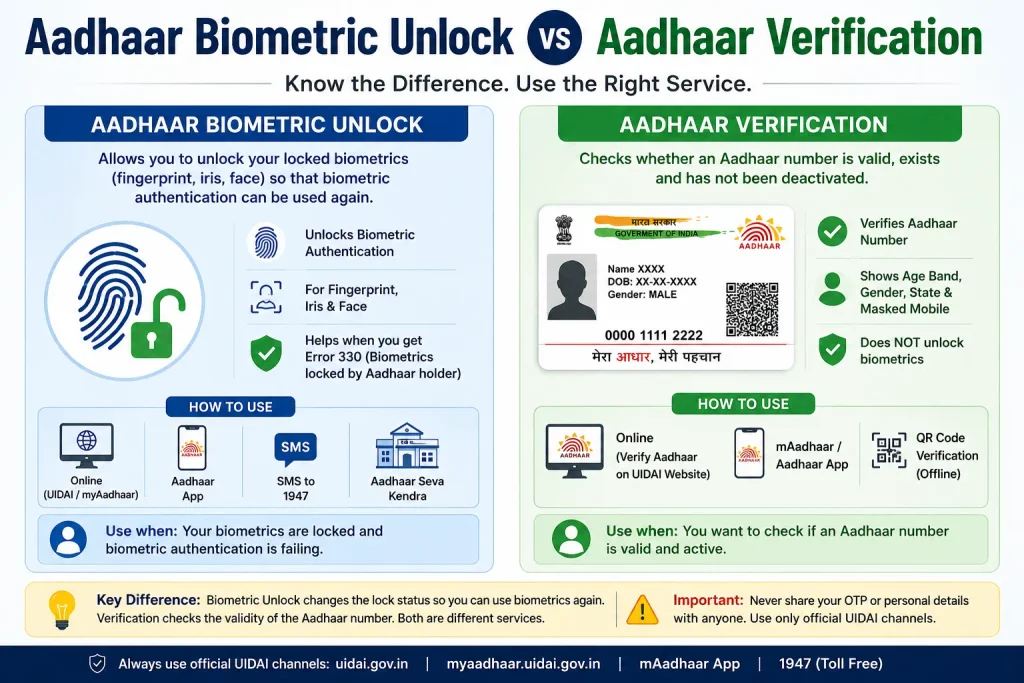
Aadhaar Biometric Unlock vs Aadhaar Verification
These two searches are frequently mixed up.
Verify Aadhaar card
If you search verify Aadhaar card, you may simply want to know whether an Aadhaar number is valid or active.
UIDAI’s verification service is designed to check whether an Aadhaar number exists and has not been deactivated. Its verification output can also provide limited information such as age band, gender, state of residence and masked mobile details.
What about “adhar card verification”?
“Adhar card verification” is a common spelling variation of Aadhaar verification. The official spelling is Aadhaar.
Verification should not be confused with biometric unlocking:
- Aadhaar verification: checks an Aadhaar number
- Biometric unlocking: permits biometric authentication when biometrics have been locked
- Aadhaar authentication: verifies identity using an accepted authentication method
- Authentication History: shows previous Aadhaar authentication activity
What Does “Please Check Aadhaar Consent” Mean?
The search phrase “please check aadhaar consent” can be confusing because it is not the name of a standard UIDAI service.
In an Aadhaar authentication transaction, the requesting entity generally needs to obtain the Aadhaar holder’s consent according to the applicable authentication framework. UIDAI explains that the entity should inform the user about the purpose and obtain the required consent.
If you see a consent-related message while using a legitimate service, check:
- 🔍 Which organisation is requesting authentication
- 🔍 Why Aadhaar authentication is being requested
- 🔍 What consent you are being asked to provide
- 🔍 Whether you are using the legitimate website or application
Important: Do not provide your Aadhaar details or OTP to an unknown website merely because it displays an “Aadhaar consent” message.
Aadhaar Authentication History: What Was My Aadhaar Used For?
Sometimes the real question behind an Aadhaar search is not “Is my Aadhaar valid?” but:
“Has my Aadhaar been used for authentication?”
That is where Aadhaar Authentication History is relevant.
UIDAI’s Authentication History facility can show information such as authentication date and time, modality, requesting agency, transaction information and UIDAI response/error details. A registered mobile number is required.
History window: Covers the last six months, with a maximum of 50 records displayed at one time.
If you see an authentication you did not perform, UIDAI advises contacting the respective Authentication User Agency (AUA) for further details.
This makes Authentication History different from Aadhaar verification.
Aadhaar and PM-KISAN Status: An Important Difference
Another common source of confusion is PM-KISAN.
A user may think:
“If my Aadhaar is verified, I should be able to see my PM-KISAN payment.”
That is not how the current official PM-KISAN status workflow should be described.
The official PM-KISAN Know Your Status page asks for the PM-KISAN Registration Number and captcha. The resulting information can include payment details, bank information, UTR, payment mode, credited date and e-KYC information.
PM-KISAN also provides a separate facility for finding the Registration Number, including lookup options involving Aadhaar or mobile information.
So:
Aadhaar verification ≠ PM-KISAN beneficiary status ≠ PM-KISAN payment status ≠ e-KYC.
If your actual goal is checking a PM-KISAN payment, use the official PM-KISAN workflow rather than an unofficial “Aadhaar payment status” website.
Common Aadhaar Biometric Problems
| Problem | What to check |
|---|---|
| Error 330 | Biometrics are locked |
| OTP not received | Check your registered mobile and current service availability |
| Mobile not registered | Use an Aadhaar enrolment/update centre |
| Fingerprint authentication failed | Do not assume biometrics are locked |
| Aadhaar number verification issue | Use UIDAI’s Verify Aadhaar service |
| Want to know previous authentication activity | Use Authentication History |
| PM-KISAN payment query | Use PM-KISAN’s official status process |
A useful rule
Always identify the error before choosing the solution.
Unlocking biometrics will not solve every Aadhaar authentication problem.
Aadhaar Safety Tips
- 🔒 Use official UIDAI and myAadhaar channels
- 🔒 Keep your registered mobile number accessible
- 🔒 Never share an Aadhaar OTP with another person
- 🔒 Do not upload Aadhaar documents to unknown websites
- 🔒 Check the exact authentication error before troubleshooting
- 🔒 Be careful with unofficial websites offering paid Aadhaar “activation” or “unlock” services
- 🔒 Remember that biometric lock and Aadhaar-number lock are different facilities
FAQs
How can I do Aadhaar biometric unlock online?
Use the official UIDAI/myAadhaar biometric lock/unlock service and complete the required verification. A registered mobile number is essential for the service.
What is error 330 in Aadhaar?
Error 330 means biometrics are locked by the Aadhaar holder.
Can I unlock Aadhaar biometrics through the Aadhaar App?
Yes. The current official Aadhaar App provides biometric lock/unlock functionality.
Is Aadhaar verification the same as biometric authentication?
No. Aadhaar verification and biometric authentication are different processes. Verification checks an Aadhaar number, while biometric authentication uses biometric information as part of an authentication transaction.
How can I check whether my Aadhaar biometrics are locked?
You can use UIDAI’s biometric lock/unlock facility or check an authentication response. Error 330 specifically indicates that biometrics are locked.
What does “please check Aadhaar consent” mean?
It generally points to a consent issue or message associated with an Aadhaar authentication transaction. It is not the name of a standard standalone UIDAI service.
Can I check PM-KISAN payment status directly with my Aadhaar number?
The PM-KISAN Know Your Status process uses the PM-KISAN Registration Number. Aadhaar can be relevant to other PM-KISAN processes, but Aadhaar verification should not be presented as a direct PM-KISAN payment-status checker.
Official Sources
- UIDAI Official Website: uidai.gov.in
- myAadhaar Portal: resident.uidai.gov.in
- Aadhaar App: Official UIDAI mobile application for Android/iOS
- UIDAI SMS Service: 1947 (from registered mobile number)
- UIDAI Helpline: 1947
Final Takeaway
If your biometric authentication fails with error 330, the first thing to understand is that your biometrics are locked. Use an official UIDAI channel to manage the biometric lock rather than assuming your Aadhaar itself is invalid.
For other problems, choose the service that matches your actual need: Verify Aadhaar for Aadhaar-number verification, Authentication History for previous authentication activity, and the official PM-KISAN status service for beneficiary or payment information.
That simple distinction—biometric unlock, verification, authentication, e-KYC and PM-KISAN status are different things—can save you from following the wrong Aadhaar procedure.

3 Comments
Pingback: Aadhaar eSign: Digital Document Signing
Pingback: UIDAI Full Form: Aadhaar Number, VID & UIDAI Explained
Pingback: Life Certificate 2026: Apply Online